
Introduction
Instagram is one of the most popular social media apps today. Millions of people use it every day to share photos, videos, and messages. Because of this, Instagram accounts have become a common target for hackers. Losing access to your account can be stressful, especially if you use Instagram for business or have important memories saved there.
That is why learning How To Use Google Authenticator For Instagram is so important.This extra security feature helps keep your account safe, even if someone finds out your password. It only takes a few minutes to set up, but it can save you from many problems later. In this guide, you will learn everything in a simple way. Even beginners can follow these steps without any trouble.
What Is Google Authenticator?
Google Authenticator is a free app made by Google. It creates special six digit codes that change every few seconds. These codes are used for two factor authentication.
Two factor authentication adds another layer of security to your Instagram account. Instead of using only your password, Instagram will also ask for a code from Google Authenticator.
This means that even if someone knows your password, they still cannot log in without the code. That is why many people choose this method to protect their accounts.
The app works on both Android and iPhone devices. It also works without an internet connection.
Why Should You Use Google Authenticator For Instagram?
Learning How To Use Google Authenticator For Instagram can help you keep your account much safer.
Passwords can sometimes be stolen or guessed. But with two factor authentication turned on, hackers have a much harder time getting into your account.
Some of the biggest benefits are:
- Better account security.
- Less chance of being hacked.
- No need to depend on text messages.
- Codes work even when you are offline.
- Easy and quick to use.
This feature is especially useful if you run a business account or have many followers.
Download Google Authenticator App
Before learning How To Use Google Authenticator For Instagram, you need to install the Google Authenticator app.
For Android users:
- Open the Google Play Store.
- Search for Google Authenticator.
- Download and install the app.
For iPhone users:
- Open the App Store.
- Search for Google Authenticator.
- Install the app.
Once the app is installed, you are ready to connect it with Instagram.
How To Use Google Authenticator For Instagram Step By Step
Follow these easy steps.
Step 1: Open Instagram Settings
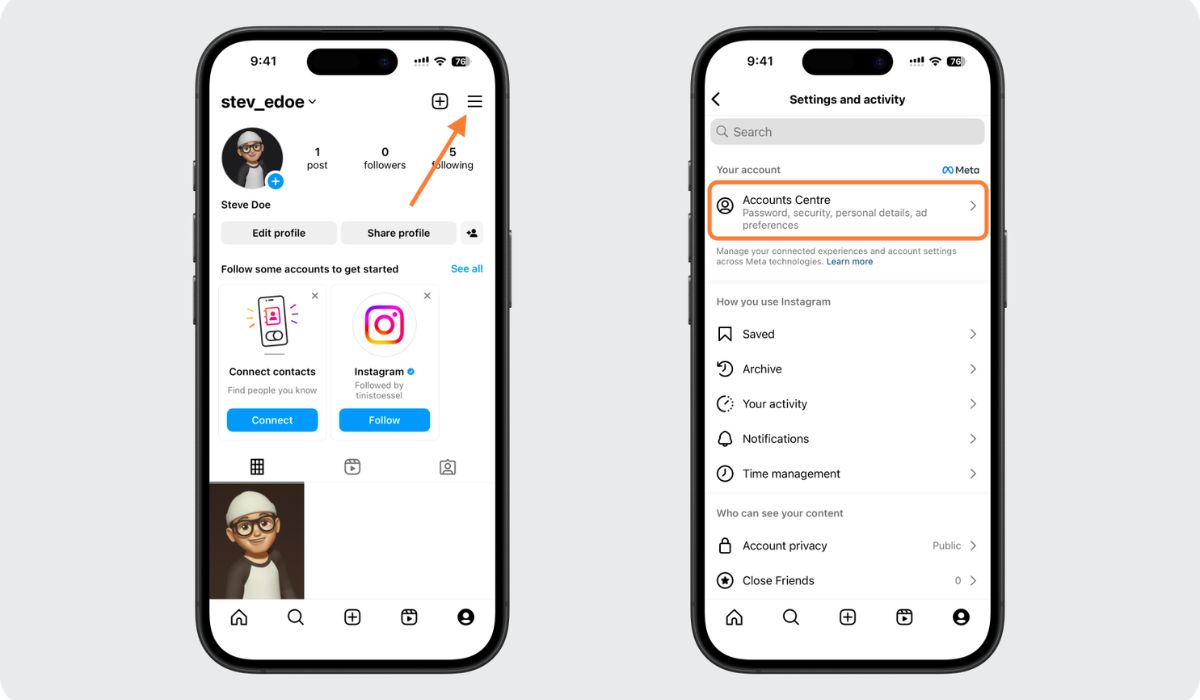
Open Instagram and go to your profile. Tap the menu icon and choose Settings and Privacy.
Step 2: Open Accounts Center
Find Accounts Center and then tap Password and Security.
Step 3: Select Two Factor Authentication
Choose Two Factor Authentication and select the Instagram account you want to protect.
Step 4: Choose Authentication App
Instagram will show different security options. Select Authentication App.
Step 5: Connect Google Authenticator
If Google Authenticator is already installed, Instagram may connect automatically. Open the app and allow the setup.
Step 6: Enter The Code
Google Authenticator will show a six digit code. Type that code into Instagram.
After this step, your account will have extra protection.
How To Use Google Authenticator For Instagram If Automatic Setup Fails
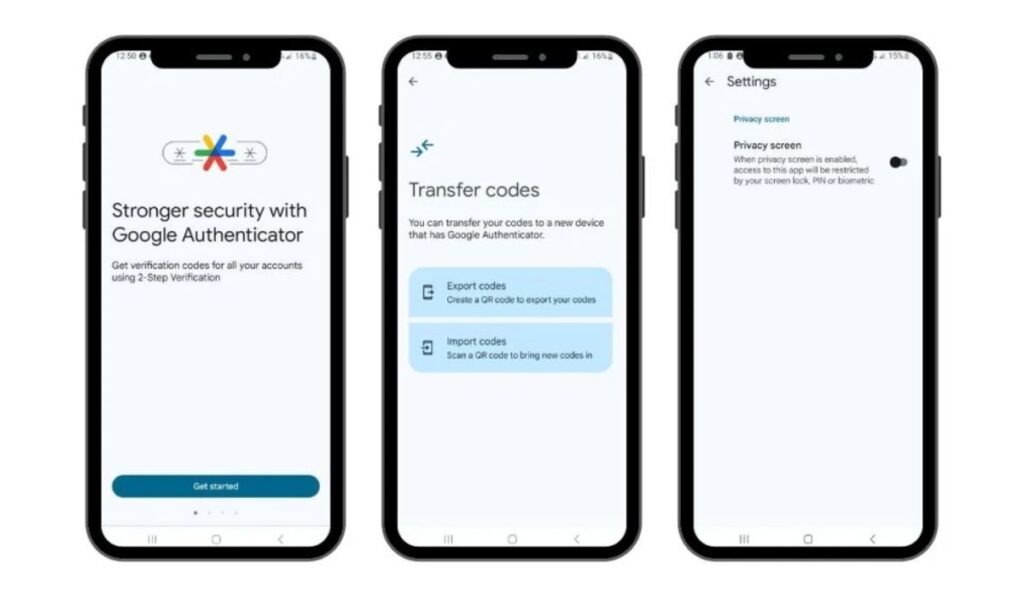
Sometimes the automatic setup does not work. Do not worry. Instagram also gives you another option.
It will provide a setup key. Open Google Authenticator and tap the plus sign. Choose Enter a Setup Key and type the code given by Instagram.
After that, the app will create verification codes normally. Enter the code into Instagram and finish the setup.
This method works well if the QR code or automatic setup does not work.
Why Backup Codes Matter
Many people forget about backup codes. But they are very important.
Backup codes help you log in if your phone gets lost or damaged. Instagram gives you several recovery codes that can be used one time each.
You can save them in a safe place such as:
- A password manager.
- Printed paper stored safely.
- Secure cloud storage.
Never share these codes with anyone.
What Happens If You Change Your Phone?
Many users worry about changing phones after setting up two factor authentication.
Before resetting your old phone, transfer your Google Authenticator accounts to your new device. This will help you avoid login problems later.
If you lose your phone before transferring the app, you can use your backup codes to sign in again.
Planning ahead can save you a lot of trouble.
Common Problems And Simple Solutions
Incorrect Verification Code
Make sure your phone time is set automatically. Wrong time settings can cause code errors.
Lost Phone
Use your backup codes or Instagram recovery options.
No Codes Showing In Google Authenticator
Close the app and open it again. Also check if the account was added correctly.
QR Code Is Not Working
Use the manual setup key instead.
These small fixes solve most problems.
Tips To Keep Your Instagram Account Safe
Even after learning How To Use Google Authenticator For Instagram, there are other things you should do.
Create a strong password with letters, numbers, and symbols. Avoid using simple passwords.
Do not click suspicious links sent by strangers. Be careful with fake messages that claim to be from Instagram.
Check your login activity from time to time. If you see an unknown device, remove it immediately.
Good habits and Google Authenticator together provide strong protection.
Final Thoughts
Learning How To Use Google Authenticator For Instagram is one of the best ways to protect your account. The setup process is simple and only takes a few minutes.
Google Authenticator gives you extra security and helps stop hackers from accessing your account. It works offline, is easy to use, and is trusted by millions of users around the world.
If you care about your Instagram account, turning on two factor authentication is a smart decision.
Conclusion
Learning How To Use Google Authenticator For Instagram is a simple step that can make a big difference in protecting your account. With two factor authentication enabled, your Instagram profile becomes much safer from hackers and unauthorized access. The setup process is easy, and the extra security it provides is worth the few minutes it takes to activate.
Whether you use Instagram for personal use or business purposes, keeping your account secure should always be a priority. By following the steps in this guide and saving your backup codes, you can enjoy Instagram with greater confidence and peace of mind.
FAQs
1. Is Google Authenticator free?
Yes. Google Authenticator is completely free to download and use.
2. Does Google Authenticator need internet?
No. The app creates codes even without an internet connection.
3. Is Google Authenticator safer than text message verification?
Yes. Many experts believe authentication apps provide better security than SMS codes.
4. What should I do if I lose my phone?
Use your backup codes or Instagram account recovery options.
5. Can I turn off two factor authentication later?
Yes. You can disable it anytime from Instagram settings.
Read More: Dexerto Pokemon: Your Complete Guide to News, Leaks, Events, and Community Updates